Tickets and One-on-One Support
Submit issues through KeyAnchor tickets, add information, and track progress.
After purchasing a resource, you can create a ticket in KeyAnchor if you encounter an installation, configuration, usage, or licensing issue. The issue description, logs, and replies stay together in the ticket so that an administrator can follow up.
Create a ticket
- Sign in to the resource management page, click “我的工单” (“My tickets”), and open the ticket list.
- Click “创建工单” (“Create ticket”).
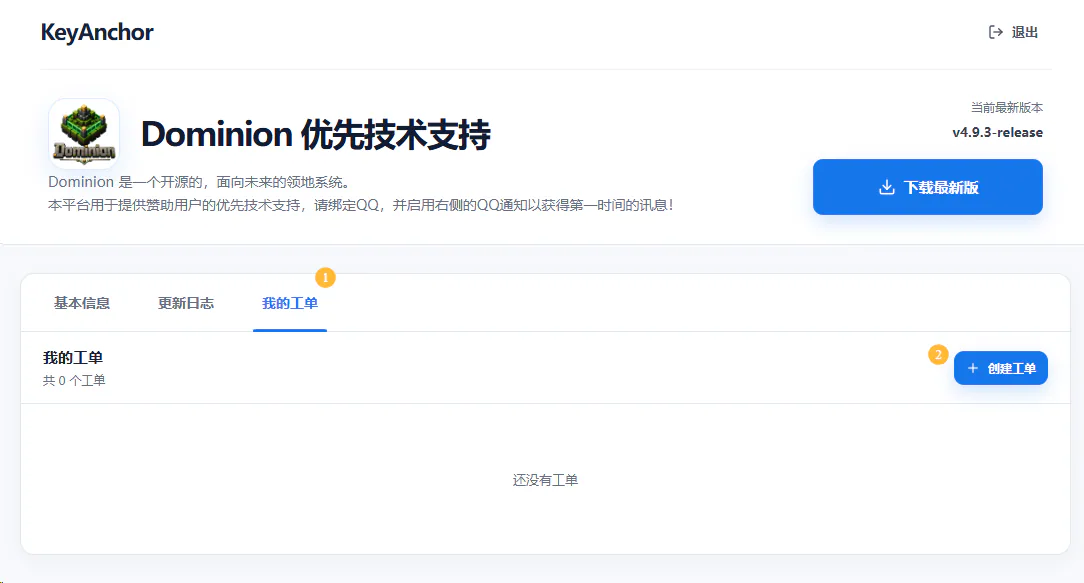
- In the ticket dialog, select the type of issue you encountered. If the issue concerns a specific version or build, select the relevant version under “关联构建” (“Associated build”).
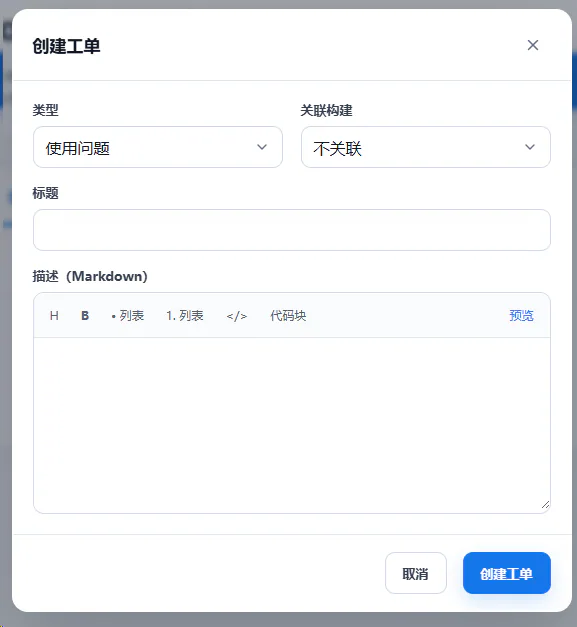
- Enter a title and description, then click “创建工单” (“Create ticket”).
Include the following information when possible:
- the resource name and version, together with the relevant Minecraft, Java, or server version;
- what actually happened and what you expected to happen;
- the complete error message or relevant logs;
- the steps needed to reproduce the issue reliably.
Remove complete Keys, passwords, and other unrelated sensitive information from logs, screenshots, and configuration files before sending them.
After the ticket is created, KeyAnchor will open the ticket details page:
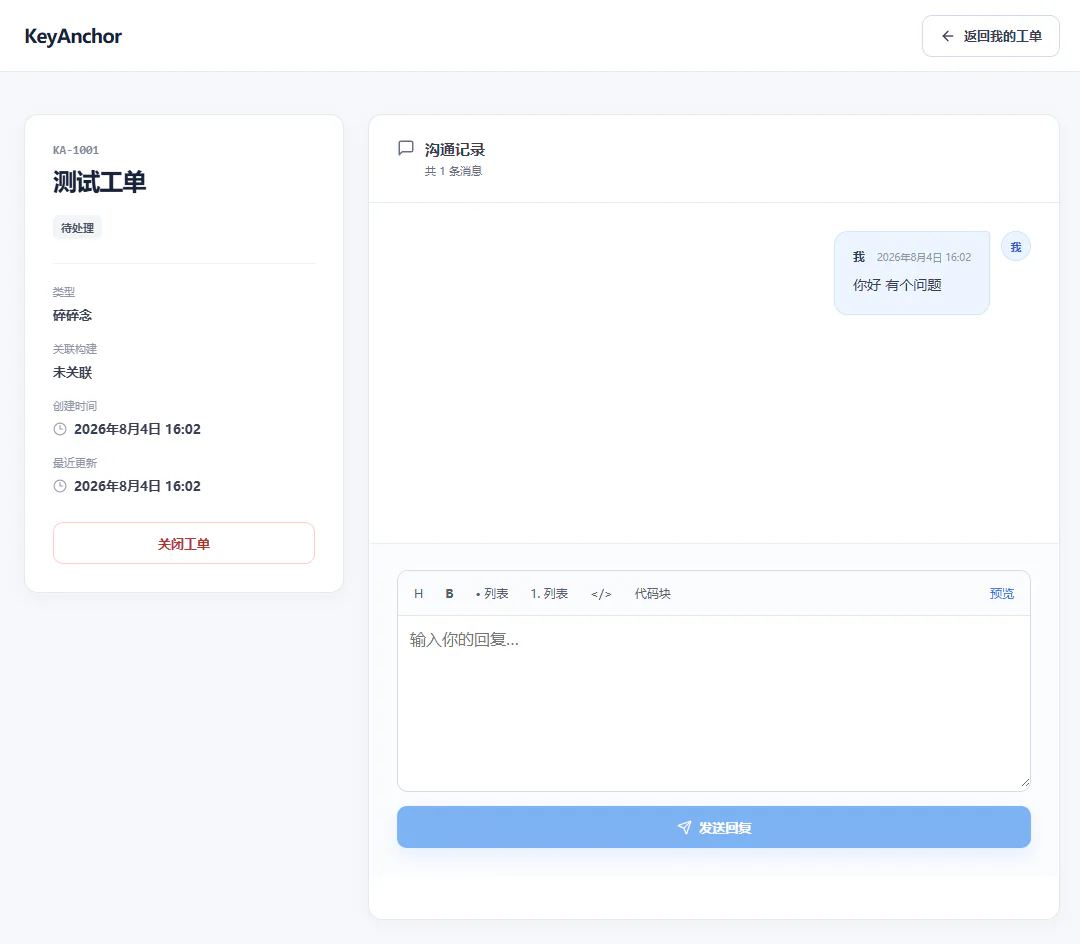
Use this page to view the ticket status, processing progress, and latest reply.
Reply to a ticket and track progress
If an administrator asks for more information, reply in the original ticket instead of creating a duplicate ticket for the same issue. You can continue adding logs, screenshots, or reproduction steps in the ticket details page.
Reply through QQ (optional)
If you have bound QQ and enabled “通过 QQ 回复工单” (“Reply to tickets through QQ”) on the resource management page, you can receive ticket notifications and reply through QQ.
The reply format is r followed by the numeric part of the ticket ID, then a space and your message. For ticket KA-1001, send:
r1001 How does this work?
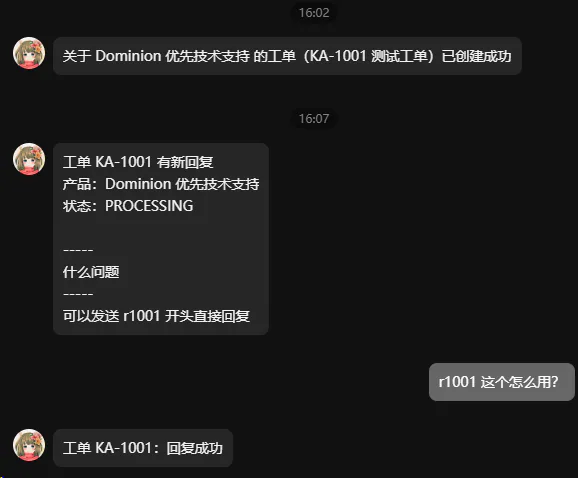
QQ will send a confirmation after the reply succeeds. If you do not receive one, return to the KeyAnchor ticket details page and confirm that the message was sent.
Tip: Send only the information needed to solve the issue. Do not send a complete authorization Key, password, or other sensitive credential.